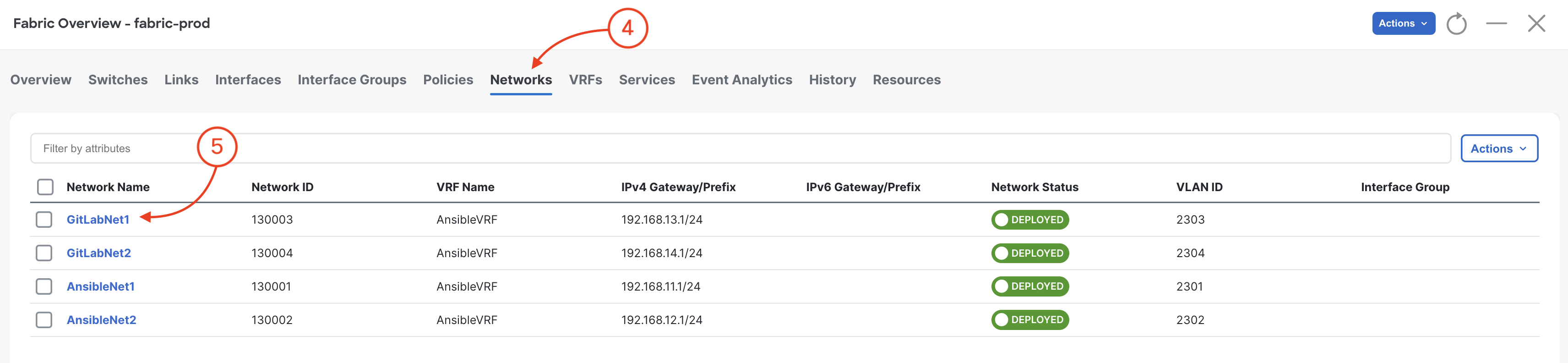
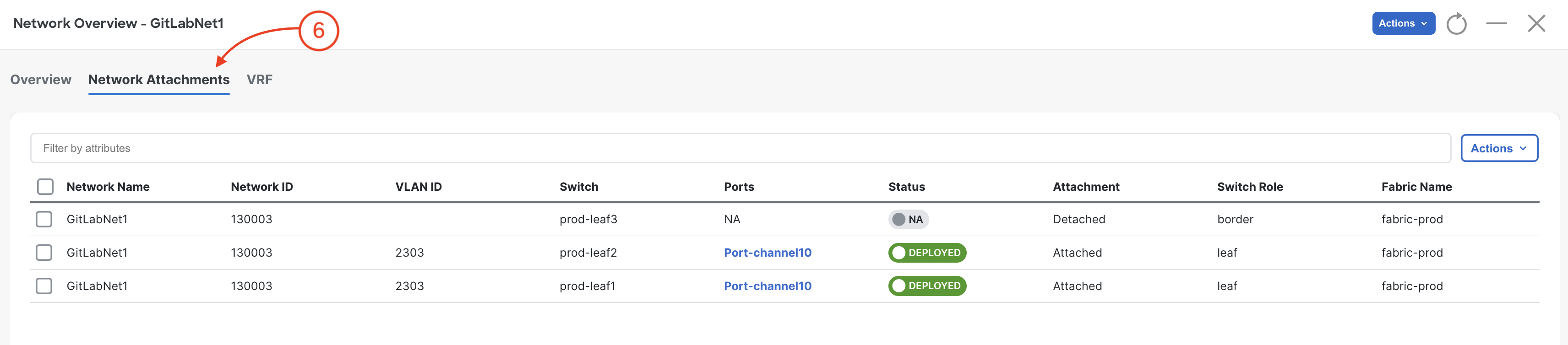
In this final section for Ansible you are going to use your newly built pipeline to add a new Network. This demonstrates how easy it is to make changes to your Network stored in GitLab as code and validate those changes against your staging fabric before pushing the changes to your production fabric.
Since you have a central variable file for all of your VRFs and Networks, all you need to do is modify the file to add the new data. Normally you would open this file and add the new Network but to make it easy we are going to replace the file you created ealier with the new Network added in.
touch ~/workspace/ndlab/nac/host_vars/fabric-stage/networks.nac.yml
cat << EOF > ~/workspace/ndlab/nac/host_vars/fabric-stage/networks.nac.yml
---
vxlan:
  overlay:
    networks:
      - name: NaC-Net01
        vrf_name: NaC-VRF01
        net_id: 130001
        vlan_id: 2301
        vlan_name: NaC-Net01_vlan2301
        gw_ip_address: 192.168.1.1/24
        network_attach_group: all
      - name: NaC-Net02
        vrf_name: NaC-VRF01
        net_id: 130002
        vlan_id: 2302
        vlan_name: NaC-Net02_vlan2302
        gw_ip_address: 192.168.2.1/24
        network_attach_group: all
      - name: NaC-Net03
        vrf_name: NaC-VRF01
        net_id: 130003
        vlan_id: 2303
        vlan_name: NaC-Net02_vlan2303
        gw_ip_address: 192.168.3.1/24
        network_attach_group: all
    network_attach_groups:
      - name: all
        switches:
          - hostname: staging-leaf1
            ports:
              - port-channel10
          - hostname: staging-leaf2
            ports:
              - port-channel10
EOF
touch ~/workspace/ndlab/nac/host_vars/fabric-prod/networks.nac.yml
cat << EOF > ~/workspace/ndlab/nac/host_vars/fabric-prod/networks.nac.yml
---
vxlan:
  overlay:
    networks:
      - name: NaC-Net01
        vrf_name: NaC-VRF01
        net_id: 130001
        vlan_id: 2301
        vlan_name: NaC-Net01_vlan2301
        gw_ip_address: 192.168.1.1/24
        network_attach_group: all
      - name: NaC-Net02
        vrf_name: NaC-VRF01
        net_id: 130002
        vlan_id: 2302
        vlan_name: NaC-Net02_vlan2302
        gw_ip_address: 192.168.2.1/24
        network_attach_group: all
      - name: NaC-Net03
        vrf_name: NaC-VRF01
        net_id: 130003
        vlan_id: 2303
        vlan_name: NaC-Net02_vlan2303
        gw_ip_address: 192.168.3.1/24
        network_attach_group: all
    network_attach_groups:
      - name: all
        switches:
          - hostname: prod-leaf1
            ports:
              - port-channel10
          - hostname: prod-leaf2
            ports:
              - port-channel10
EOF
overlay.yml for Committing to the GitLab Repo
git add .
git status .
The following file is staged for commit. Make sure your list matches the output below!
    On branch stage
    Your branch is up to date with 'origin/stage'.

    Changes to be committed:
    (use "git restore --staged <file>..." to unstage)
            modified:   host_vars/fabric-prod/networks.nac.yml
            modified:   host_vars/fabric-stage/networks.nac.yml
git commit -m "Add new Networks in Overlay"
    [stage c228ded] Add new Networks in Overlay
    2 files changed, 14 insertions(+), 1 deletion(-)
stage Branch
git push -u origin stage
    Enumerating objects: 47, done.
    Counting objects: 100% (47/47), done.
    Delta compression using up to 8 threads
    Compressing objects: 100% (45/45), done.
    Writing objects: 100% (47/47), 6.84 KiB | 700.00 KiB/s, done.
    Total 47 (delta 15), reused 0 (delta 0), pack-reused 0
    remote:
    remote: To create a merge request for stage, visit:
    remote:   http://10.15.0.159/Pod01_2025_01/LTRDCN-2621/-/merge_requests/new?merge_request%5Bsource_branch%5D=stage
    remote:
    To 10.15.0.159:Pod01_2025_01/LTRDCN-2621.git
    * [new branch]      stage -> stage
    Branch 'stage' set up to track remote branch 'stage' from 'origin'.
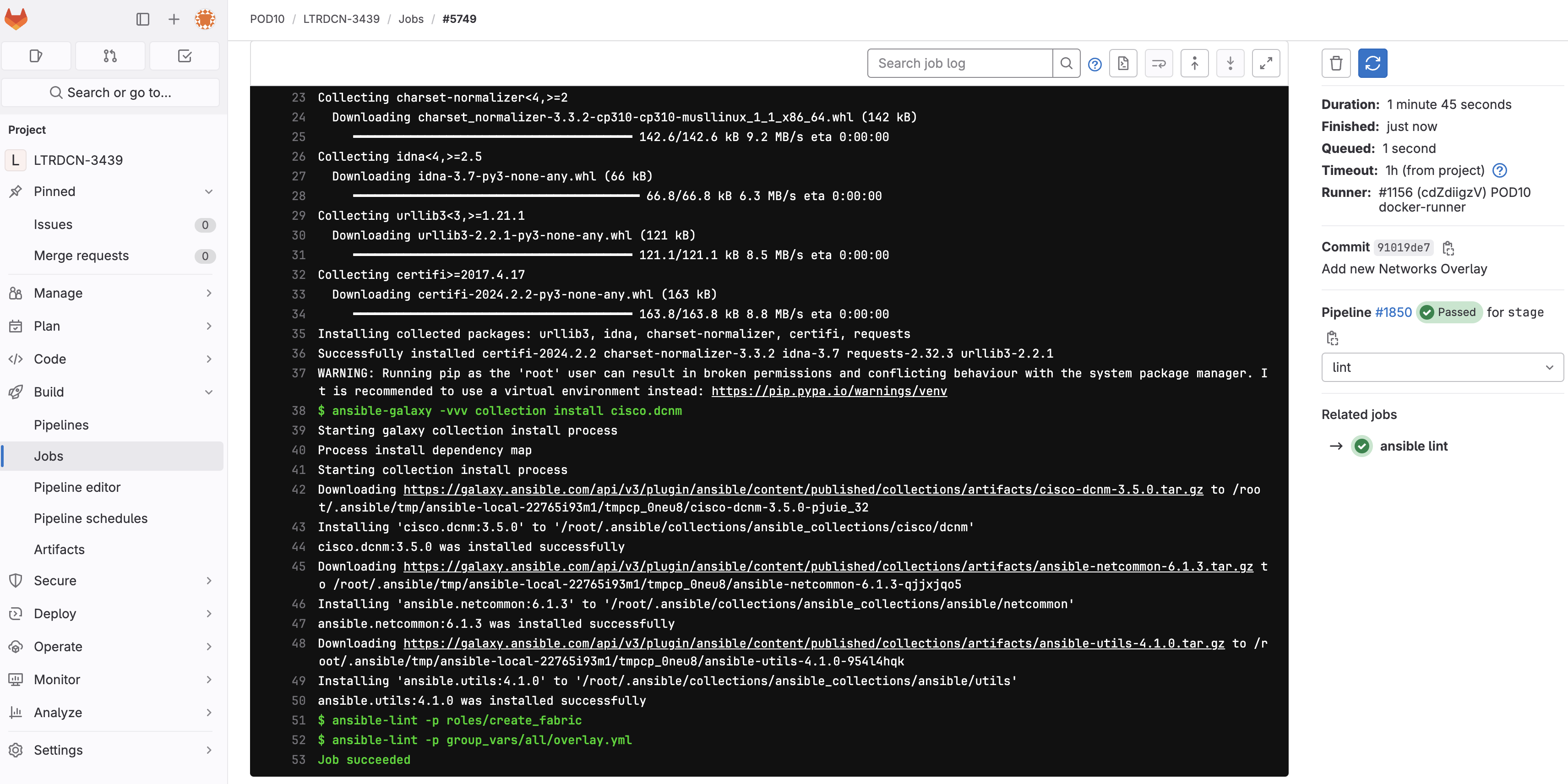
As soon as the code was committed to the stage branch, Ansible Lint validation was triggered. Return to your GitLab and navigate to Pipelines:
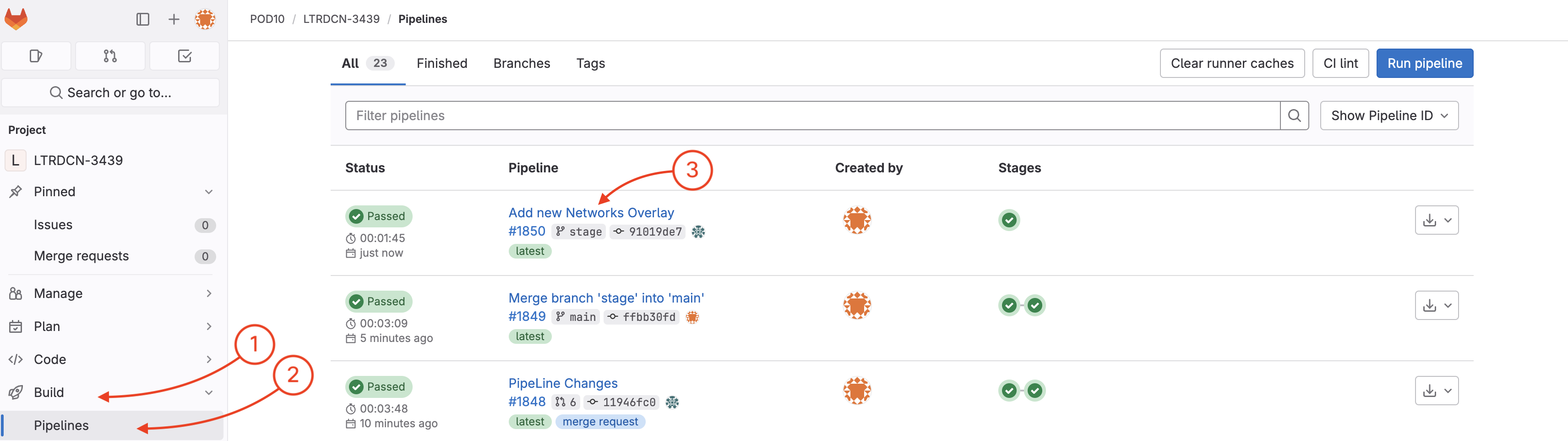
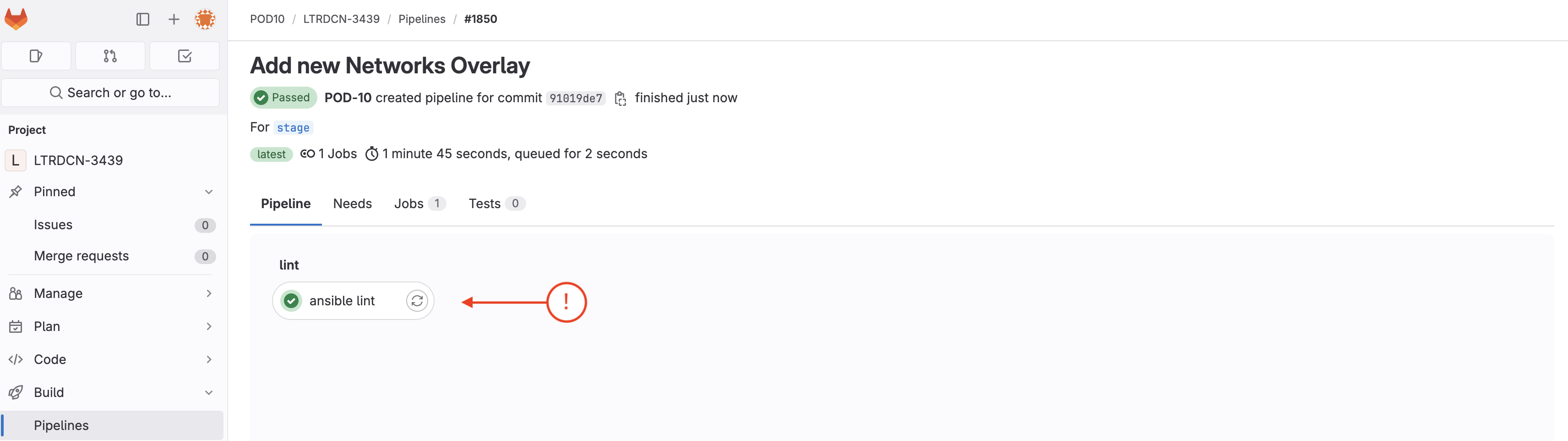
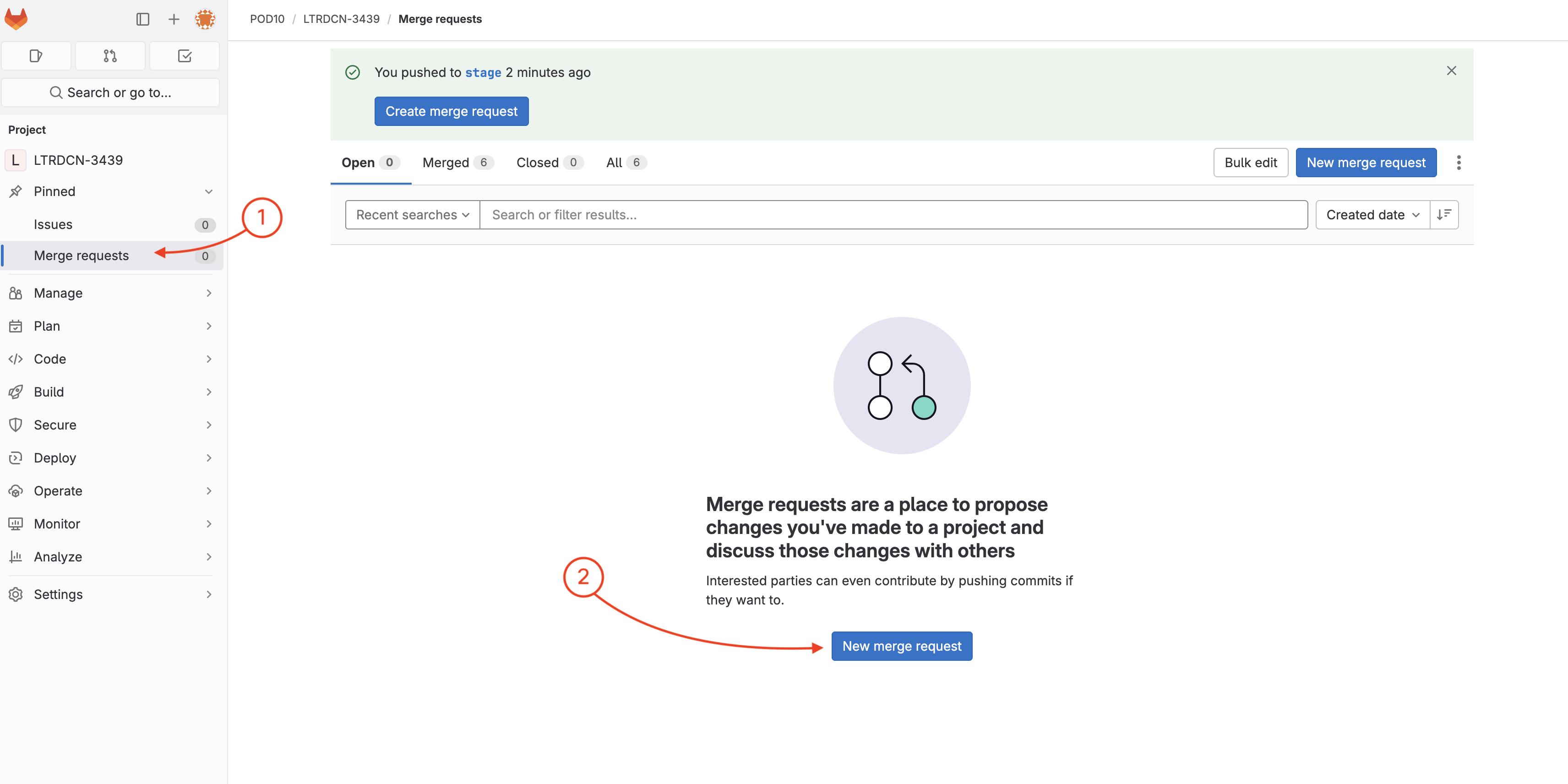
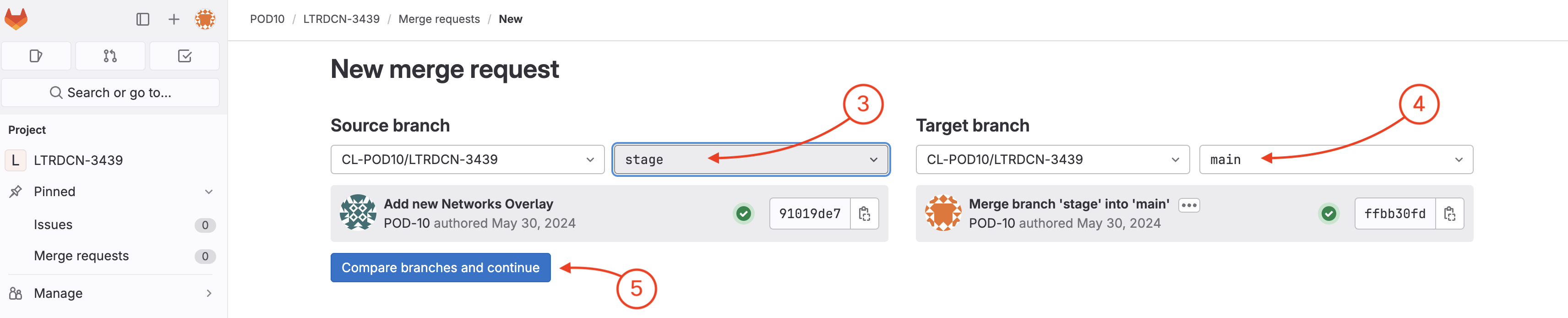
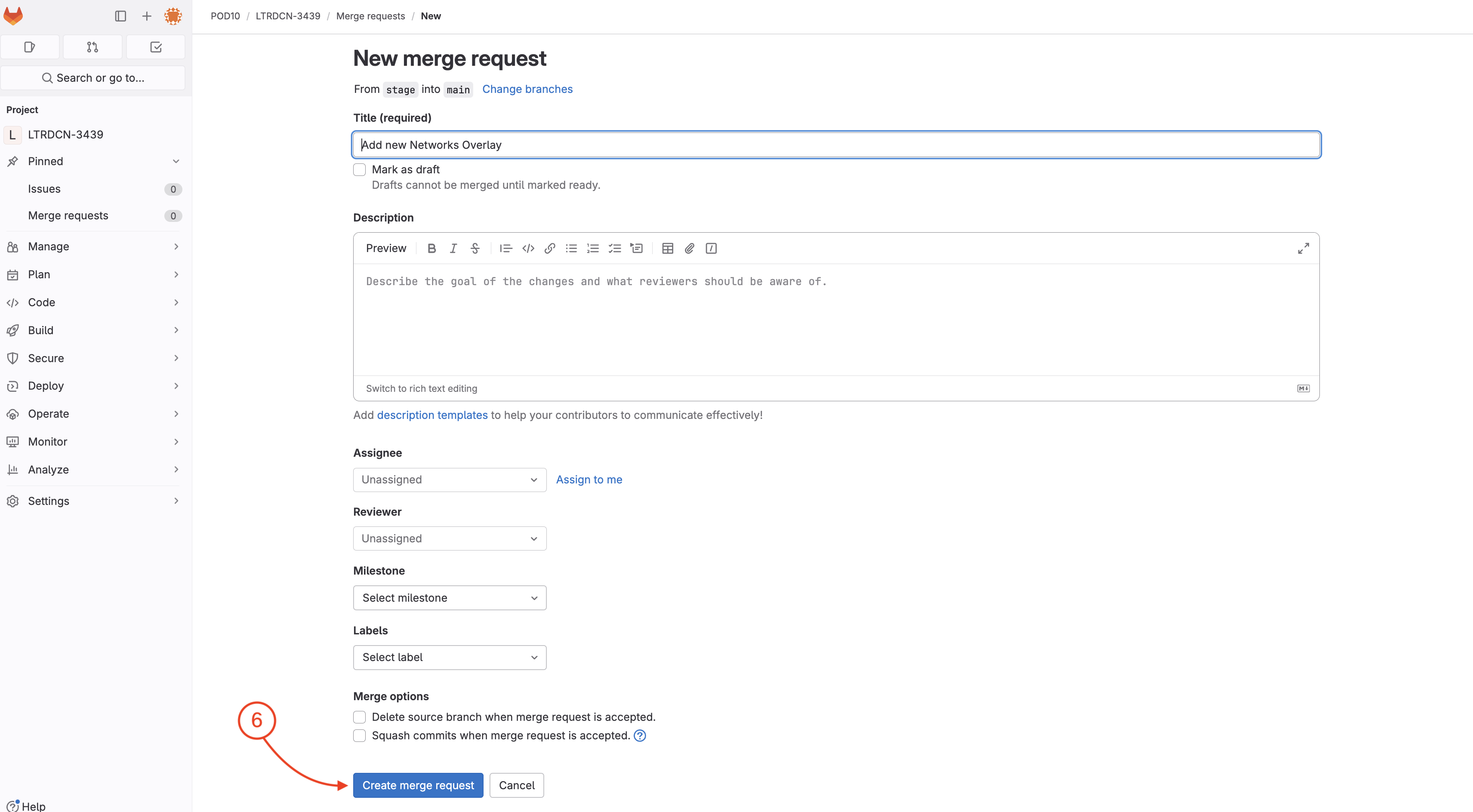
Now you need to create a merge request to verify/test the new Networks configuration against the ND staging environment fabric.

Wait until your pipeline completes against staging. In the mean time, feel free to checkout what is going on in your ND instance by following the next step.

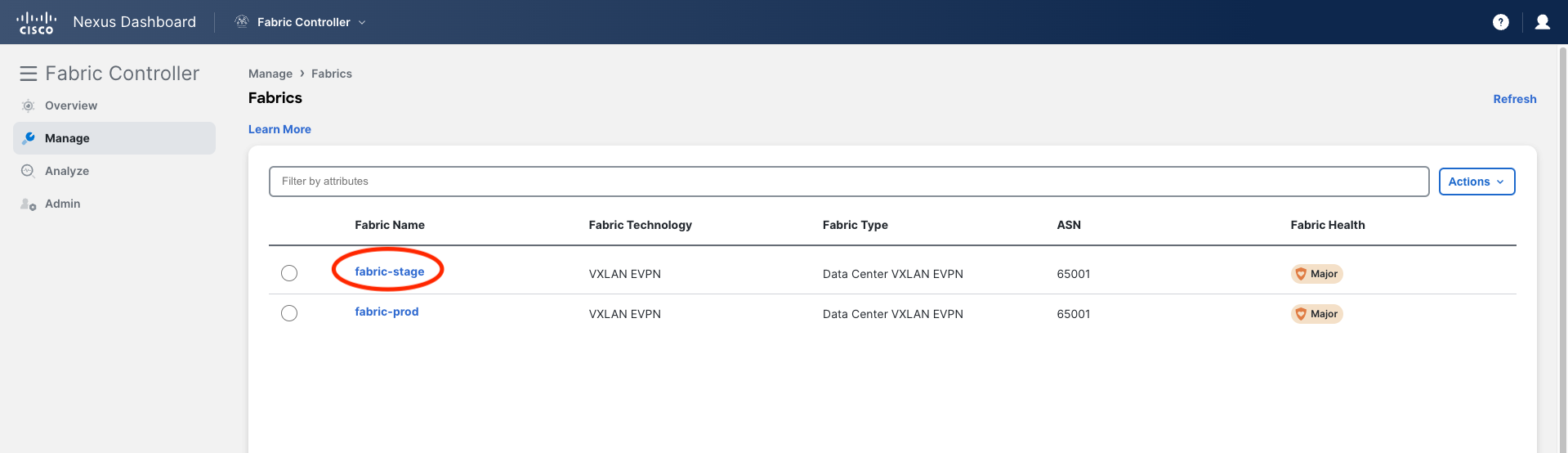
Staging FabricIn your browser, navigate back to your ND instance.

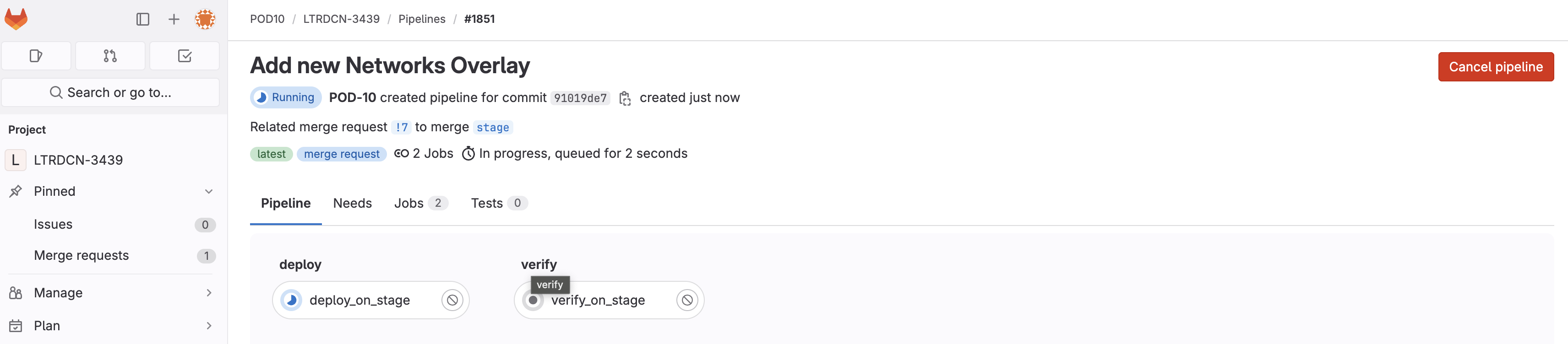
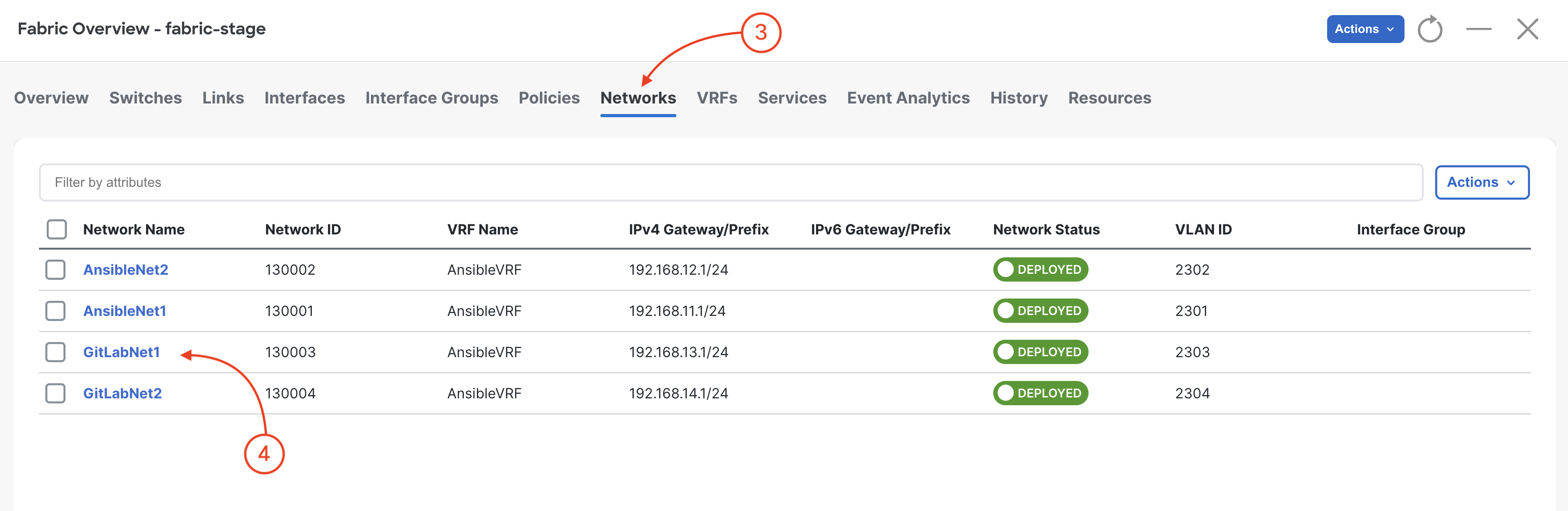
You may need to wait for the pipeline for some of the Networks to show up in the ND GUI.
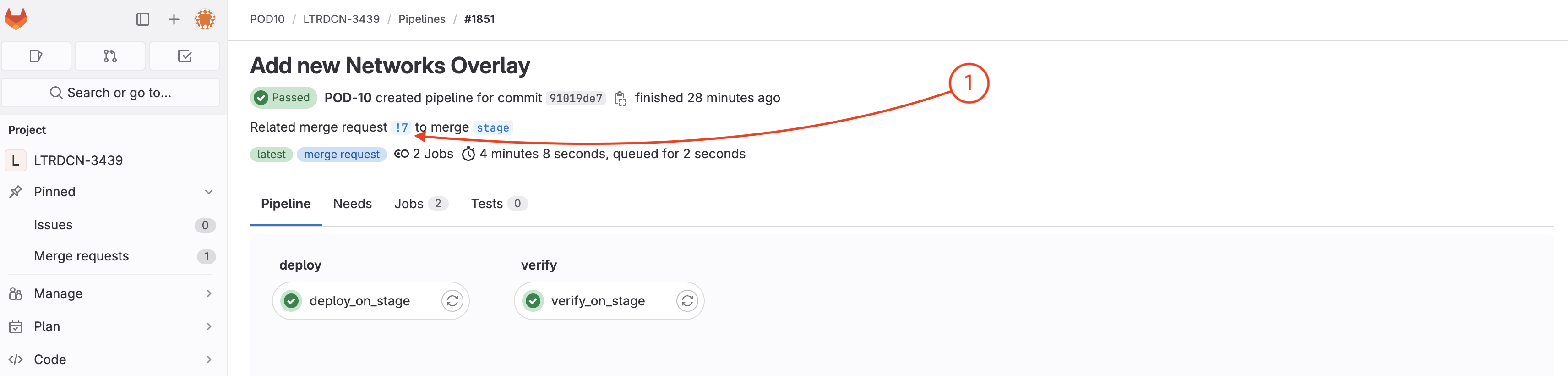
When your pipeline is done, open the merge request page:
Related merge request !# to merge stage (The link is !2 in the screenshot below)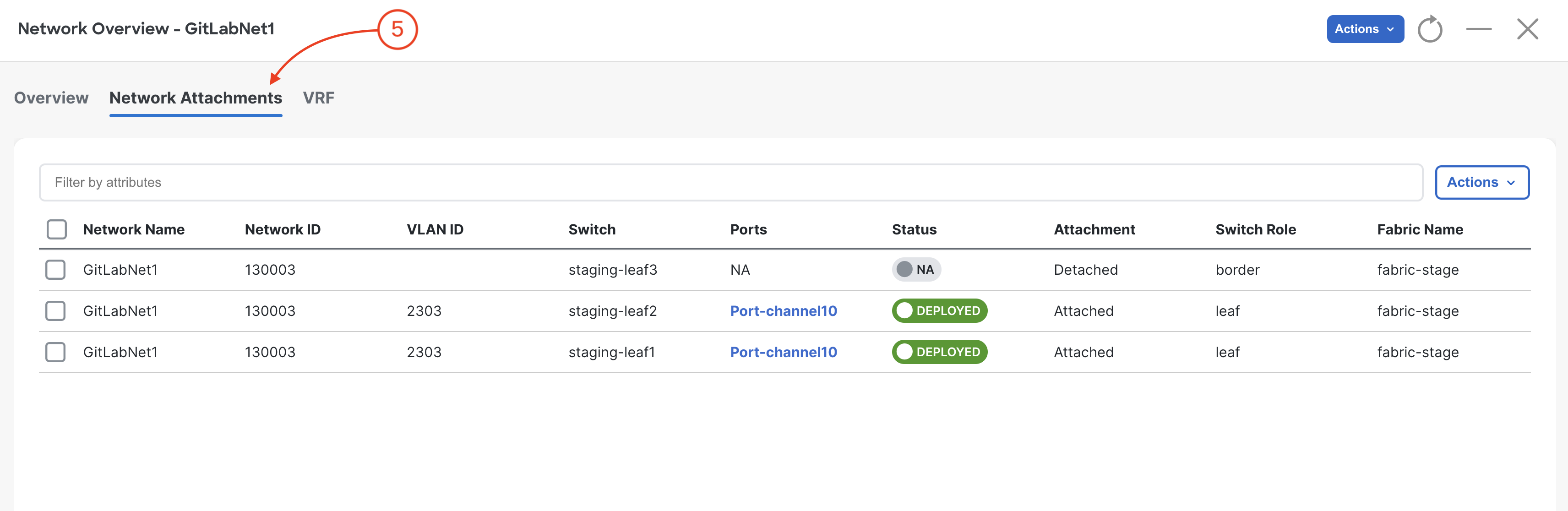
To open the merge request page:
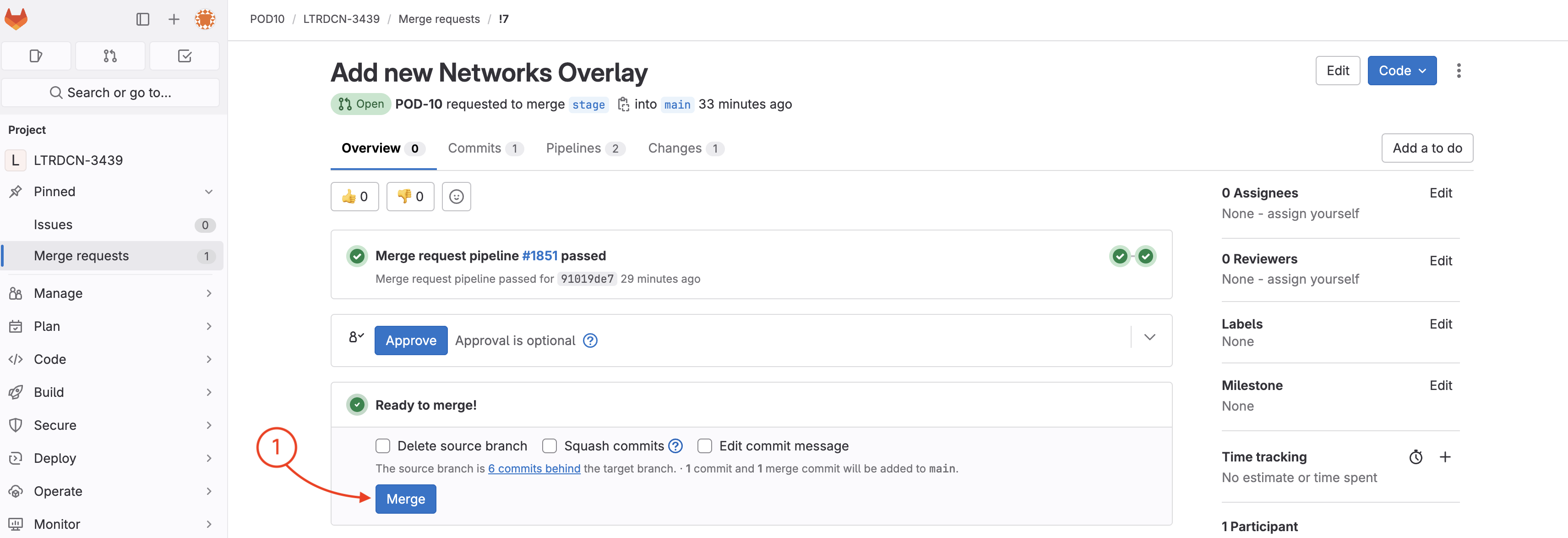
Wait until the pipeline is finished:
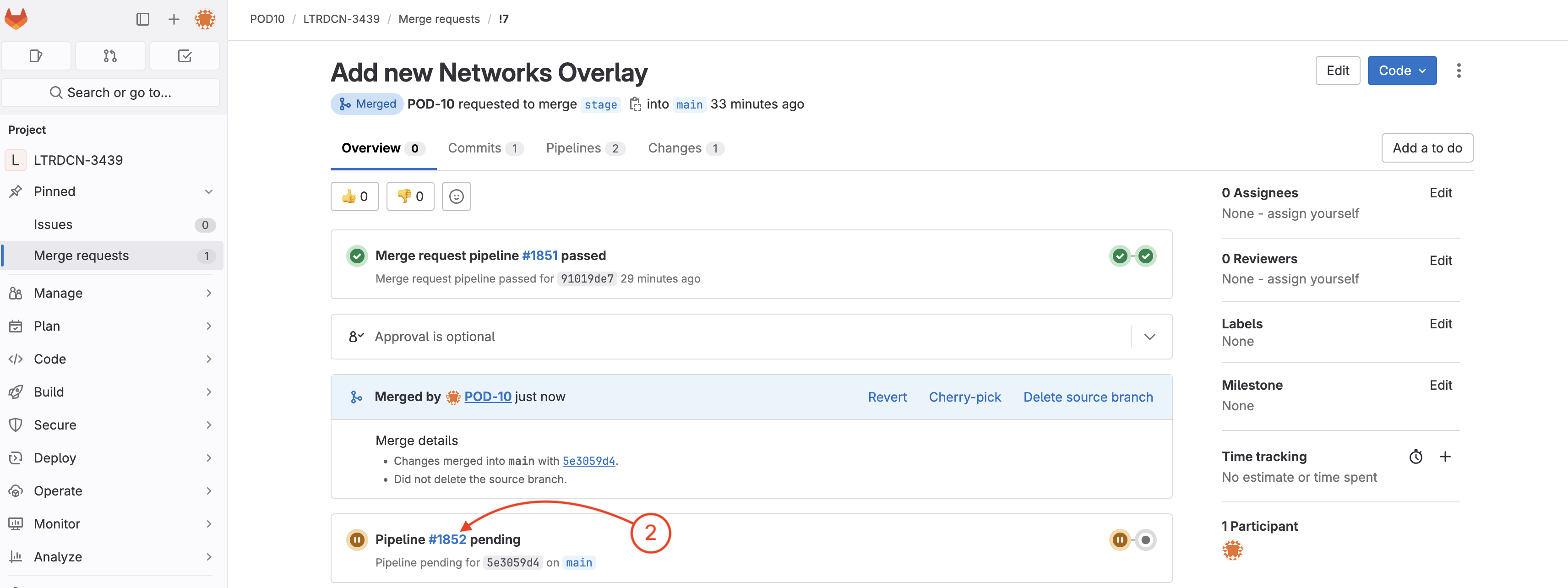
You have now modifed your Fabric by updating your source code and then using the CI and CD pipelines to deploy the changes!
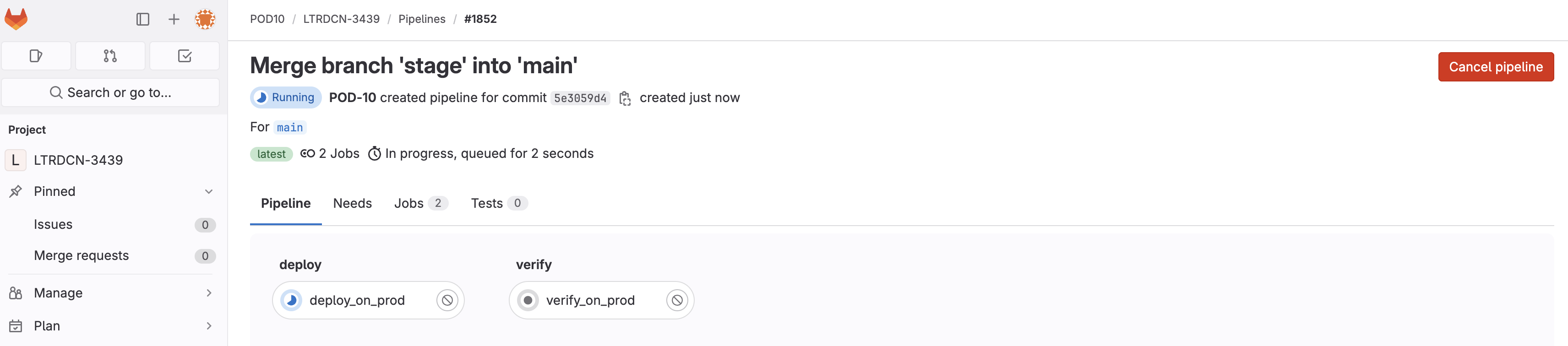
Wait until the pipeline is finished:

Production FabricIn your browser, return to ND and navigate to your prod-fabric:
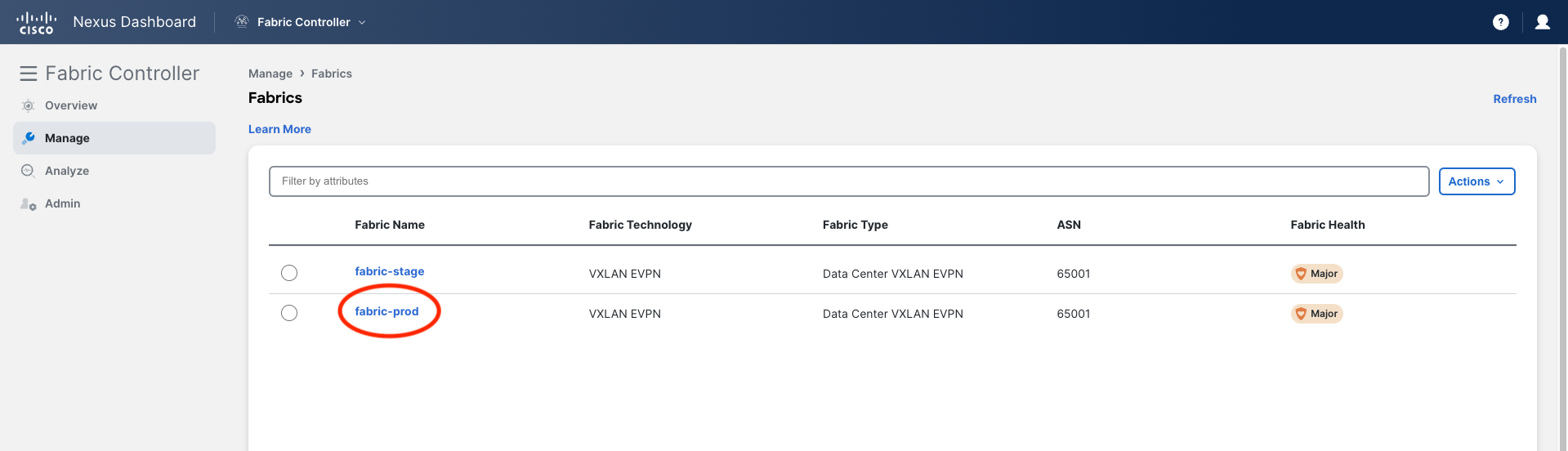
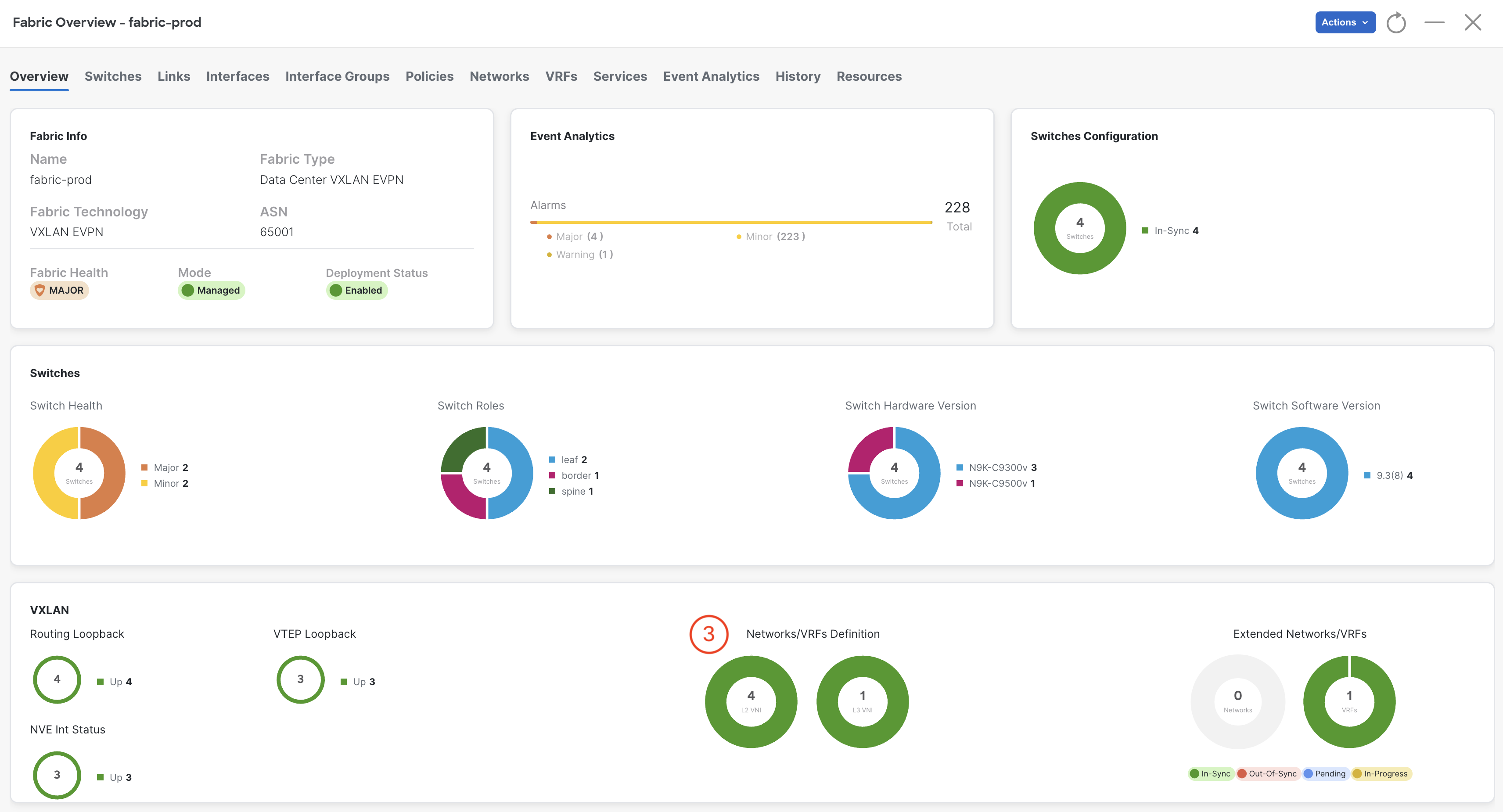
This time open the fabric page and check fabric-prod, NOT fabric-stage. Remember the CD pipeline pushes changes to the production fabric and you may need to wait to see the new Network as the pipeline runs.