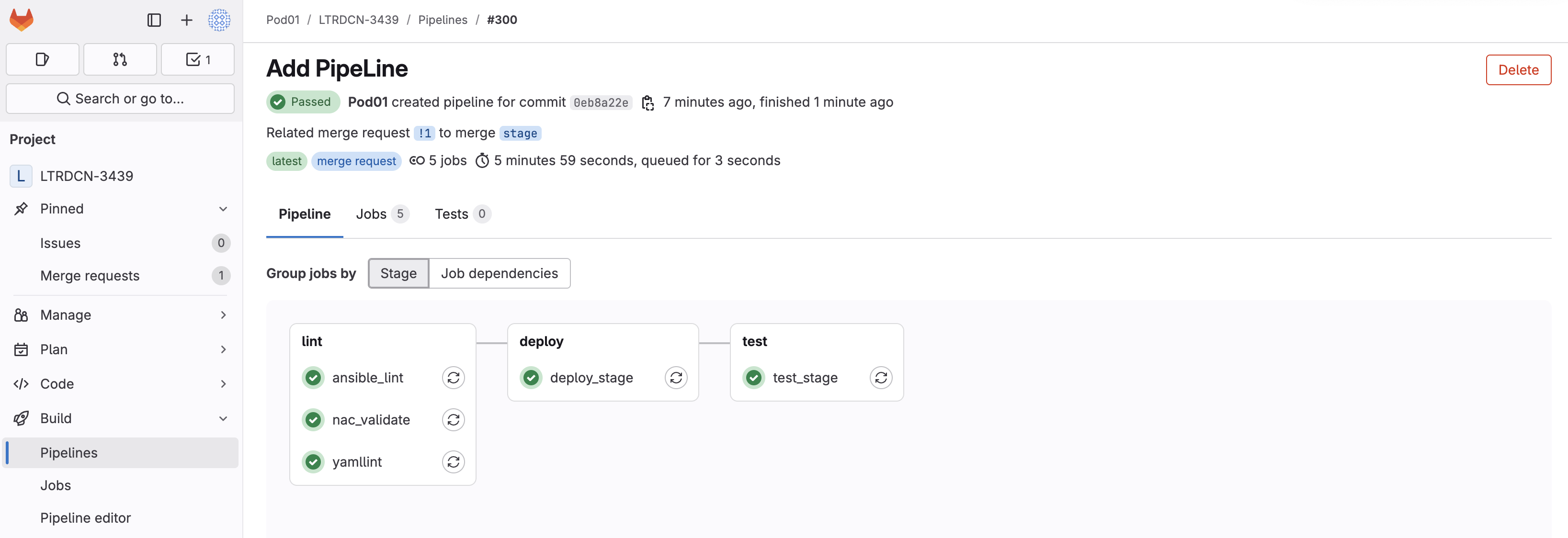
Click the !# link in the text Related merge request !# to merge stage. In the screenshot below the link is !1
Step 2 - Merge the Request
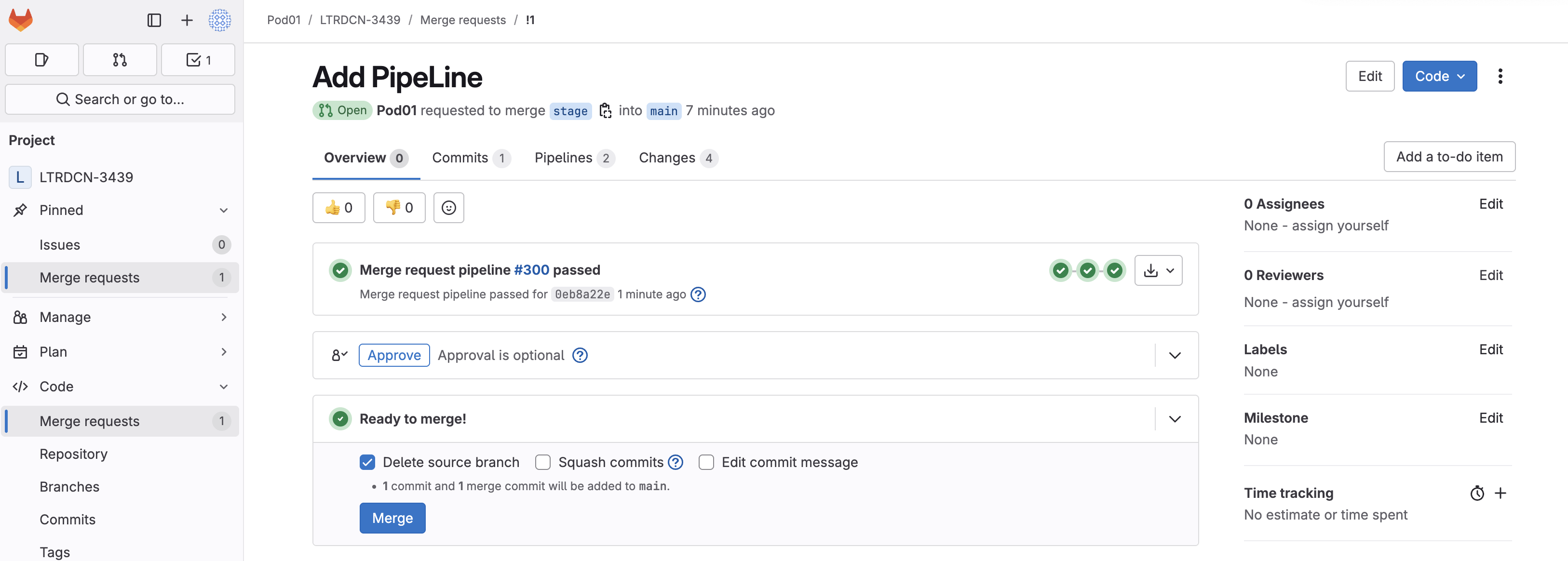
On Merge Request details page:
Click the blue Merge button
Step 3 - Navigate to Continuous Delivery Pipeline for Prod
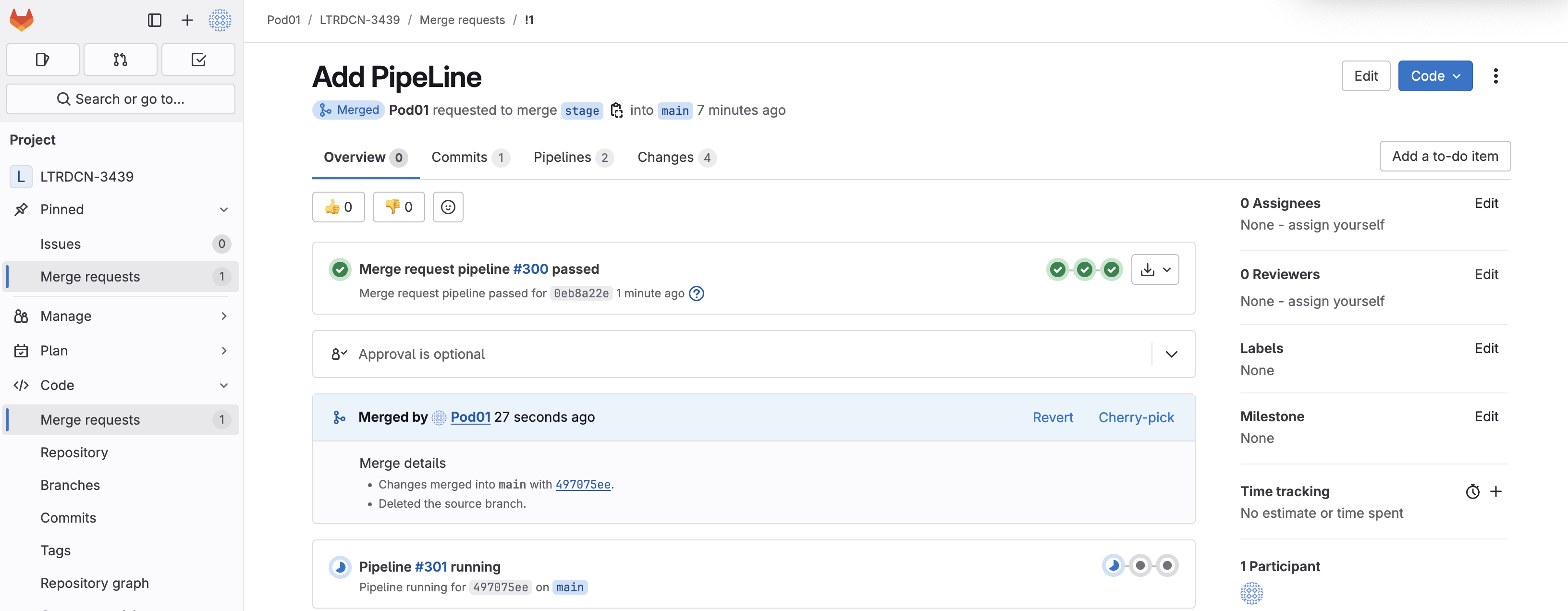
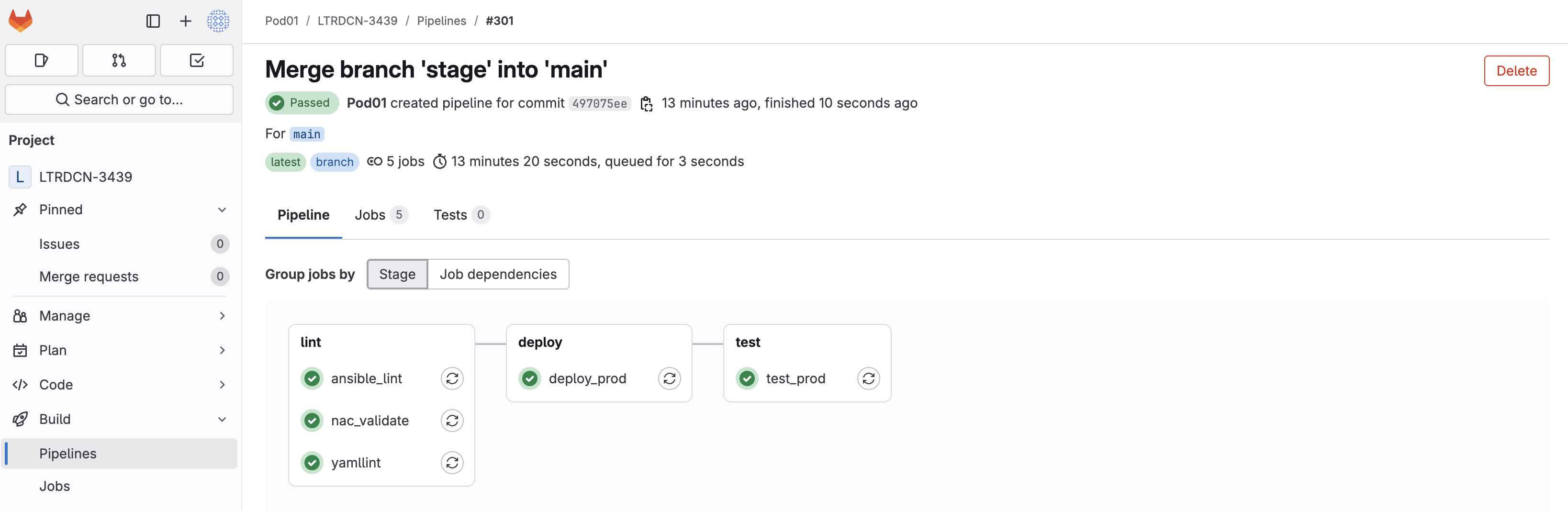
Once code is merged, a new CD pipeline is triggered:
Locate the new pipeline that was triggered
Click the Pipeline number or the blue circle with a half moon icon
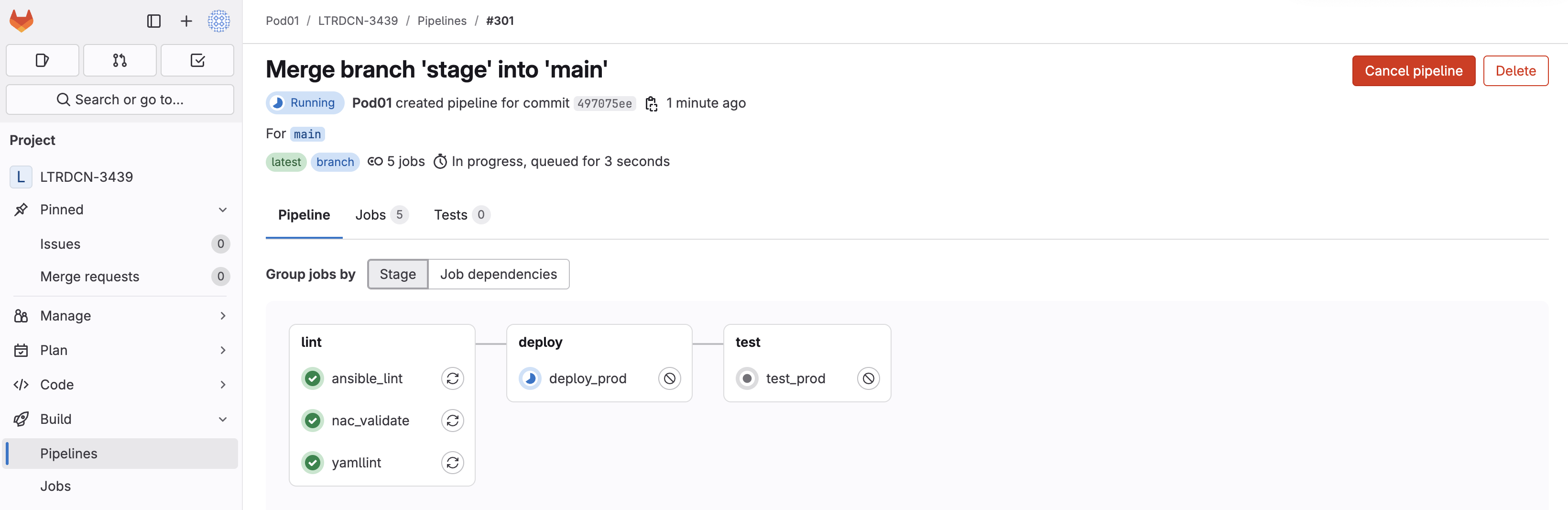
Step 4 - Wait Until Pipeline is Finished
While the pipeline is running feel free to click into the job under the deploy stage (middle box) to see the various Ansible roles running against the Production Fabric to build it out using the CD Pipeline!
This step will take around 15-16 mins to complete
This deploy_prod and test_prod are doing the following:
The deploy_prod runs the build_fabric.yml script against the production fabric.
The test_prod runs the verify_fabric.yml script against the production fabric.
This is effectively taking all of the scripts you built earlier for the staging fabric and runs them against a new target host file for the
production fabric to build out your new production fabric using the CD pipeline in GitLab!
Step 5 - Login to Nexus Dashboard and Verify the New Production Fabric
In your browser, navigate back to your NDFC instance. If needed login using your username and password:
Username:
admin
Password:
cisco.123
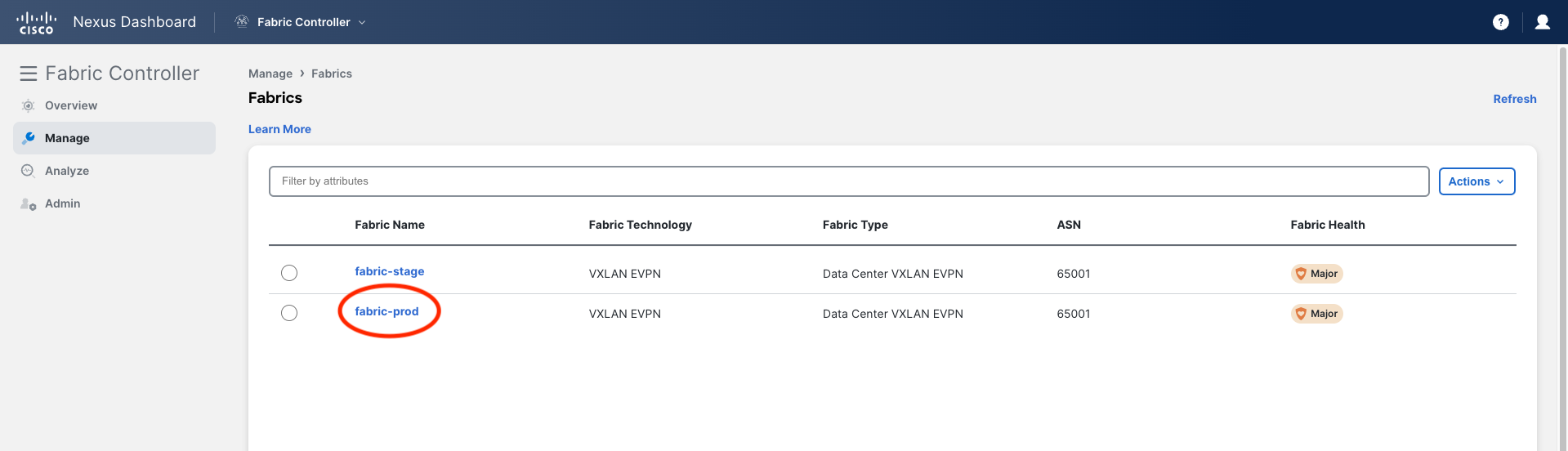
Check fabric-prod
This time open the fabric page and check fabric-prod, NOT fabric-stage.
Remember the CD pipeline pushes changes to the production fabric.
Navigate to the Fabrics page and Click fabric-prod, and verify the production fabric is configured:
Verify fabric-prod and external-fabric-prod have been created by the pipeline execution
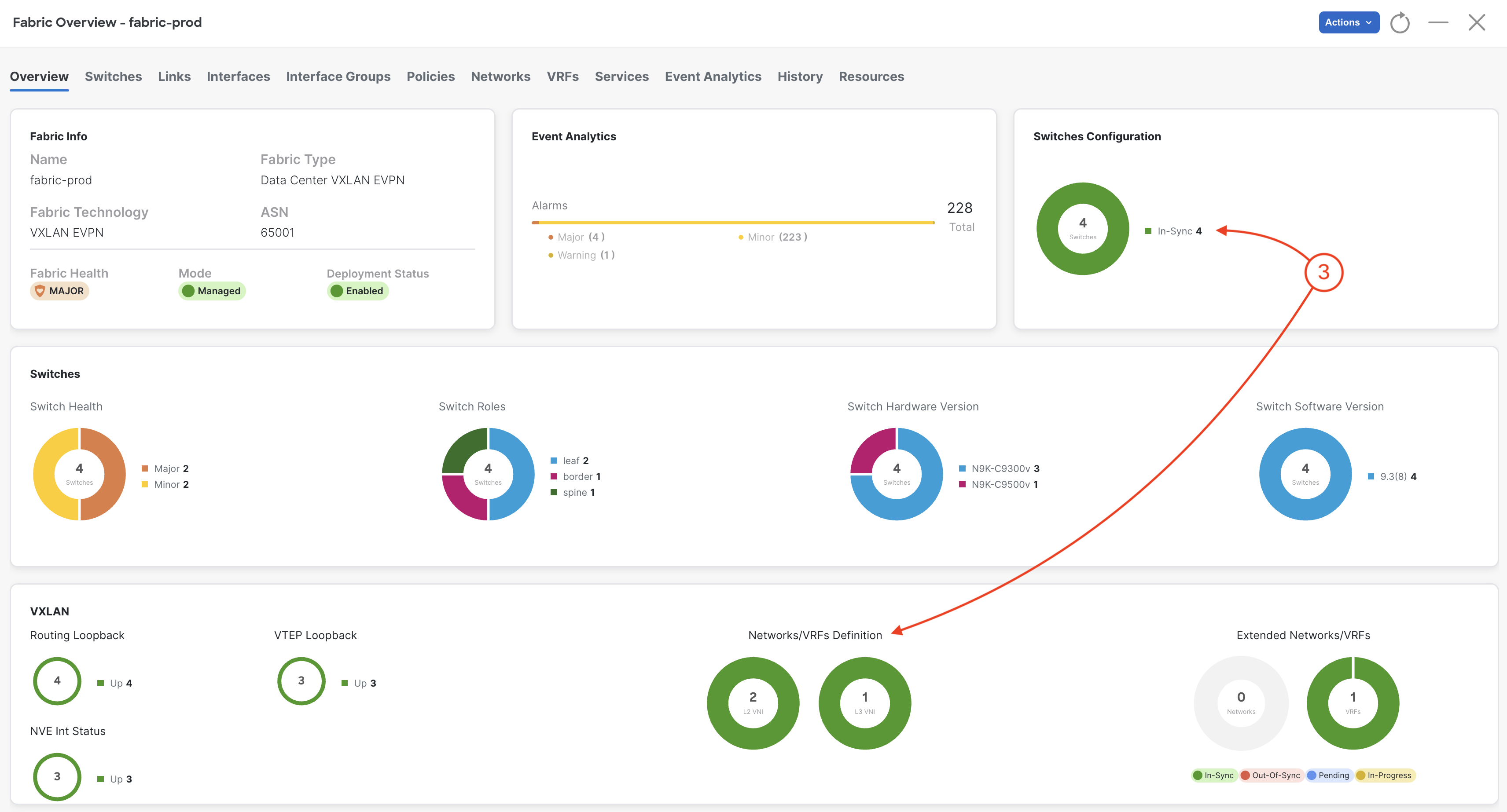
Double-click on fabric-prod
Examine your prod fabric's Overview page. You should see a total of 4 switches, 2 L2VNIs (Networks), and 1 VRF.
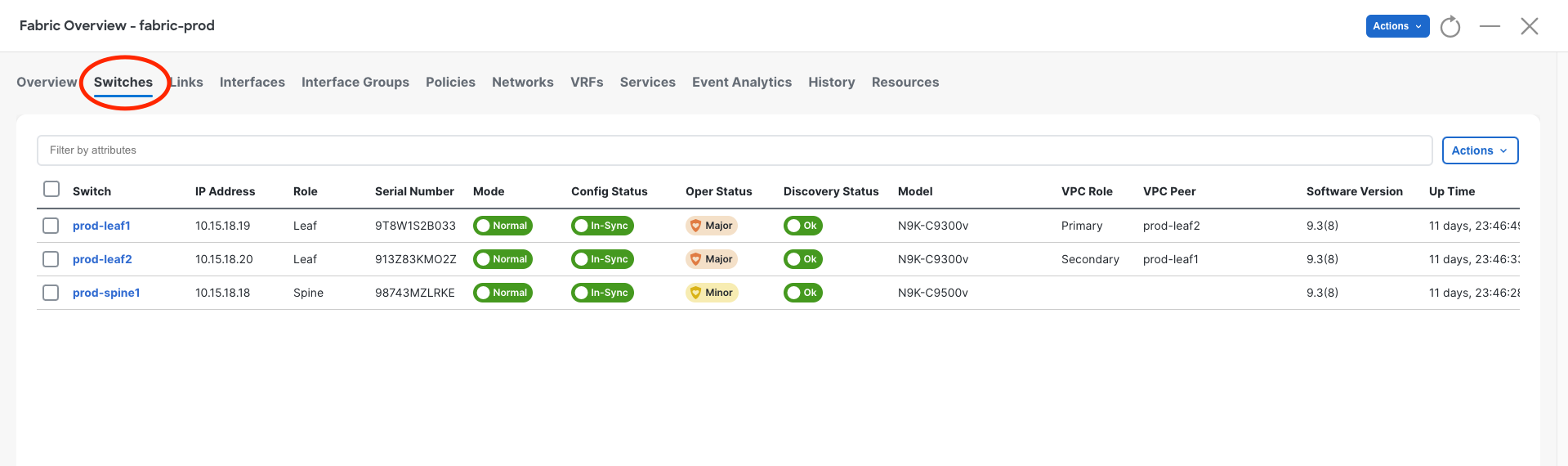
Click on Inventory in the top navigation bar
Click on Switches in the sub-navigation bar to view the switches added to your prod fabric and where the overlay configuration was configured
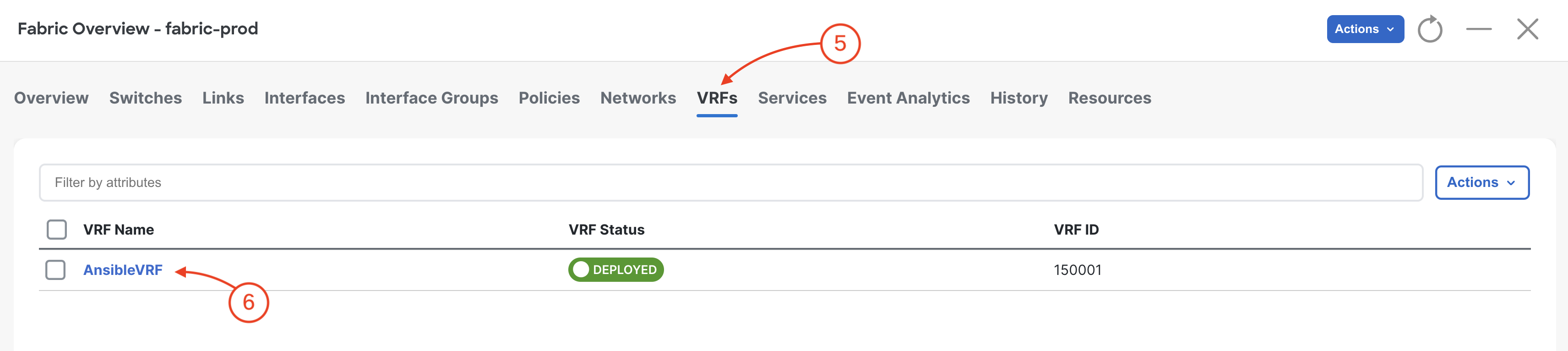
Click on Segmentation and security in the top navigation bar
Click on VRFs in the sub-navigation bar to view the VRFs added to your prod fabric. As you can see, it is the identical configuration intent you tested with your staging fabric.
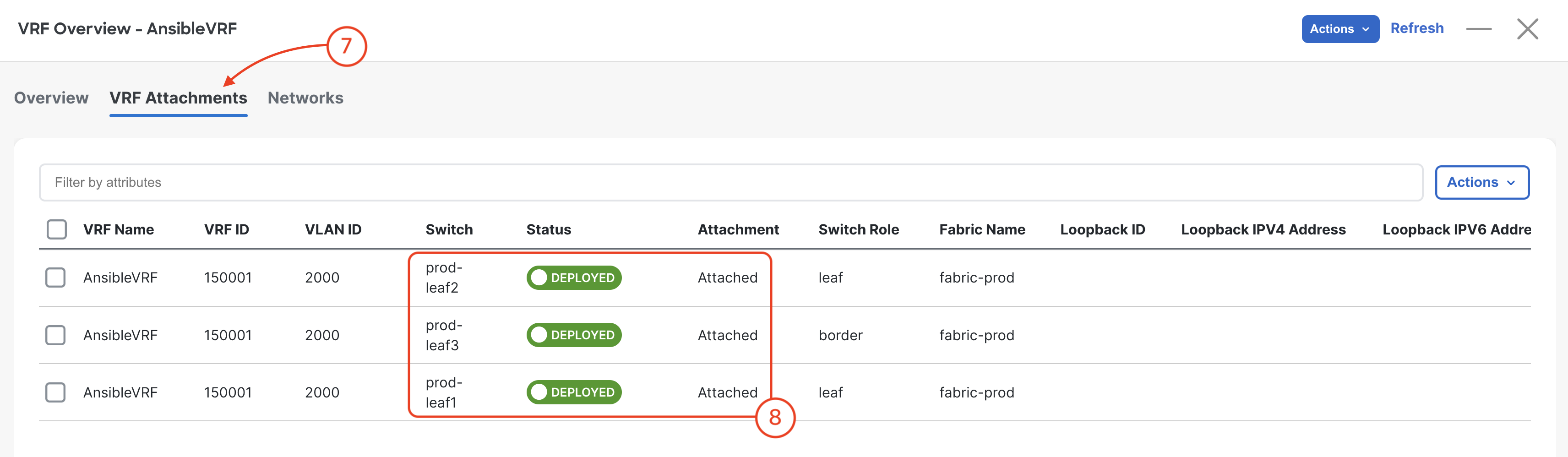
Double-click NaC-VRF01
Click on VRF Attachments to view the VRF attached to your prod leaf switches.
Verify VRF deployment to your three switches
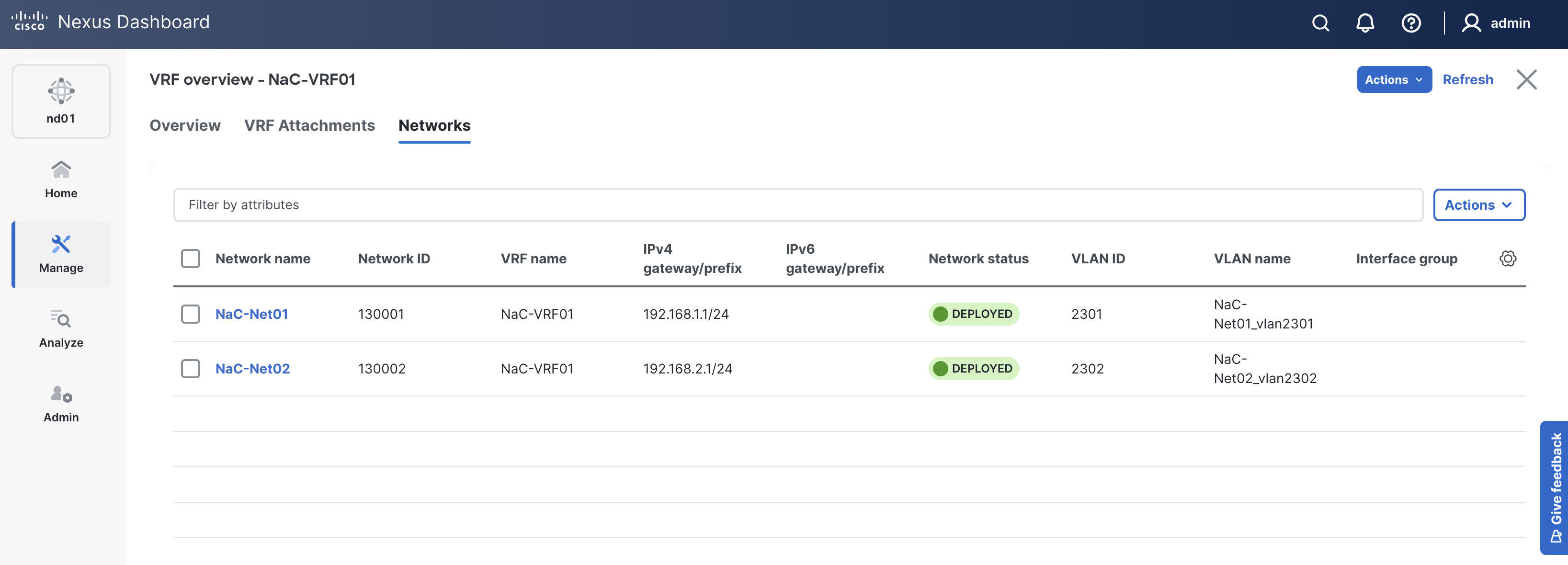
Click on Networks to view the Networks added to your prod fabric.
Verify the networks deployed to your swithces
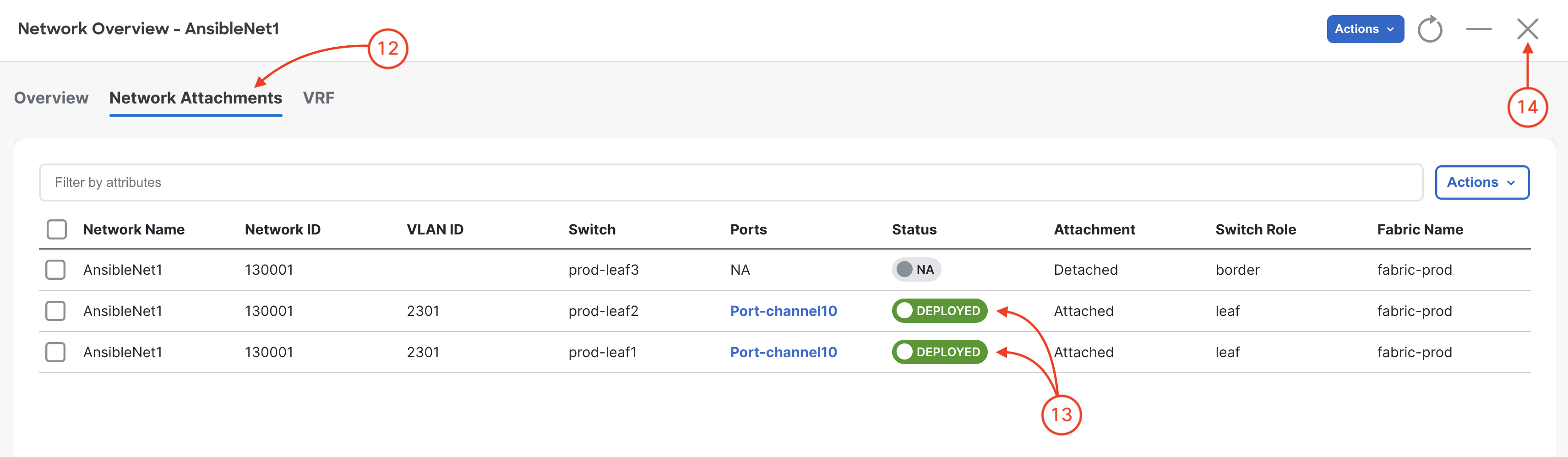
Double-click NaC-Net01
Click on Network Attachments to view the Networks attached to your prod leaf switches.
Verify networks deployed to your leaf switches
Close your Network Overview
Close your VRF to return back to the main prod fabric
Congratulations on completing the lab!
You have successfully modeled a VXLAN fabric with a data model-driven apprach using Infrastructure-as-Code (IaC) for managing staging and production Nexus Dashboard fabrics. This reusable playbook leverages YAML data files for configuration, enabling efficient and consistent deployments.
You have automated the deployment and verification of IaC configurations using GitLab CI/CD pipelines, demonstrating a modern DevOps approach to network management.